
The Black Friday War Room: What to Watch While Orders Roll In
The short version: On Black Friday, your sales number is the last thing that should tell you something broke. Write down your normal from Shopify's Conversion rate breakdown report, watch add to carts first, and use the number that dropped to decide where to look. Plan for the admin going down, sort your alarms into three buckets before Thursday, put names and phone numbers on every shift, and place one real test order every morning from Thursday to Monday. I put all of it on one free page, the War Room Card, and you can download it now.
It's Black Friday week. Shopify merchants did $14.6 billion in sales over Black Friday Cyber Monday last year, up 27% (Shopify, December 2025). That's a lot of orders, and a lot of traffic that can hide a problem.
I recorded this episode as a solo show on the Shopify1Percent podcast, and this post walks through the same plan so you can work through it with the card open beside you.
Why is your sales number the worst Black Friday alarm?
Picture this. An app updates overnight and conflicts with another app, and your add to cart button stops working. You'd expect sales to crash. They don't, at least not right away.
A lot of your Black Friday buyers carted something last week. They were waiting for the sale to drop, and they come back and click checkout straight from the cart. So orders keep trickling in. Sales look slow, maybe down by half, and you think, "It's just a slow morning." It isn't slow. New shoppers can't add anything to their cart.
That's why I think your sales number is actually the worst alarm you've got. If sales go to zero, of course something is broken. But a lot of breaks never show up in the sales number at all, or they show up hours later.
So instead of watching revenue, I put together a one-page plan I call the War Room Card.
What goes on the War Room Card?
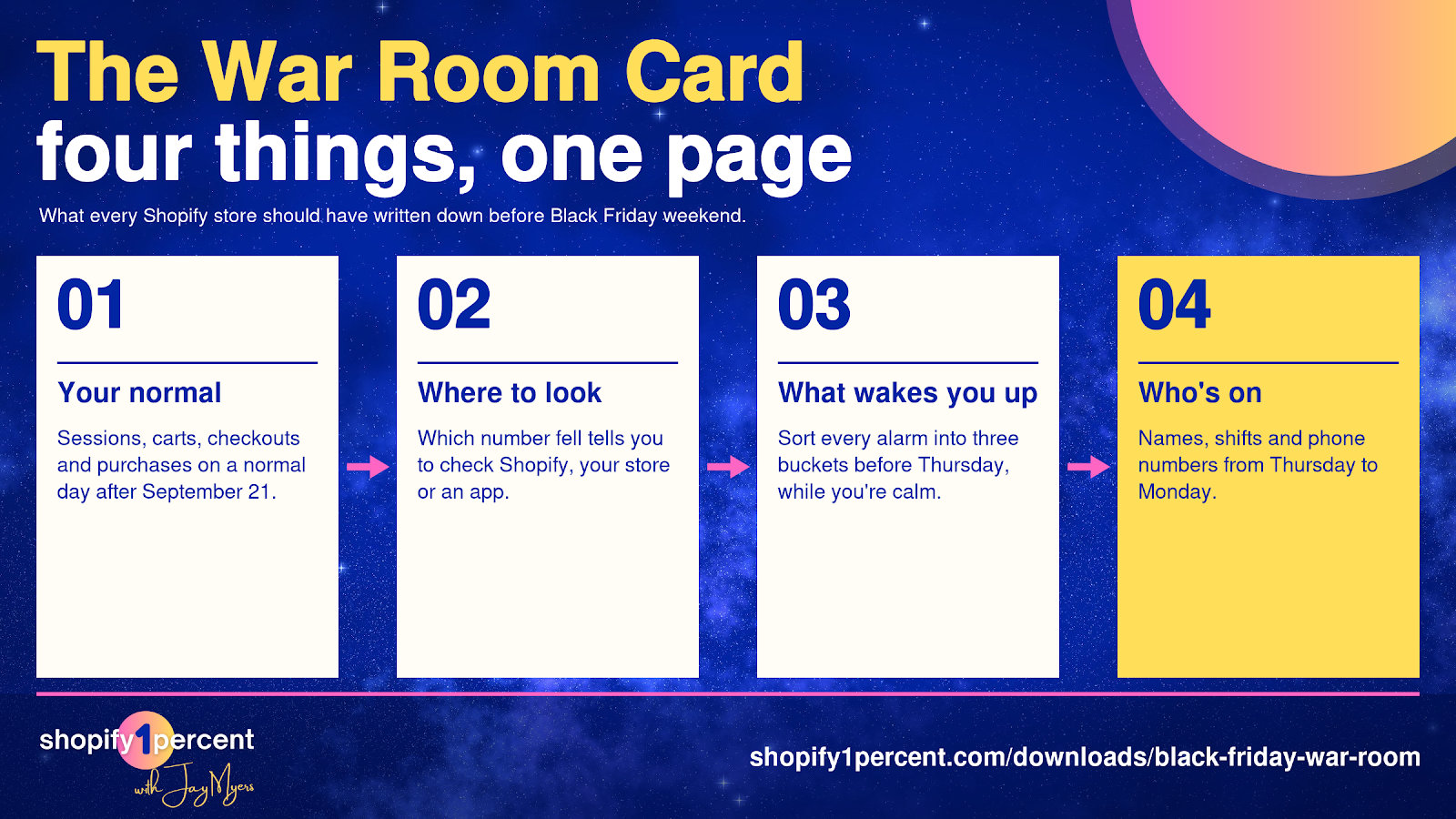
The card has four parts, and they're the four things I think every store needs planned out for Black Friday:
- Your normal. What a normal day looks like in four numbers.
- Where to look. When a number falls, how you tell if it's Shopify, your store or one of your apps.
- What wakes you up. Which alarms are worth getting someone out of bed for, and which ones aren't.
- Who's on. Names, shifts and phone numbers from Thursday to Monday.
It's a fillable PDF, so you can type right into it, then print a copy and leave it beside the computer where everyone's working. If you start it now, you'll have it done by the end of this post.
How do I find my store's normal in Shopify?
You can do this one right now. In your Shopify admin, go to Analytics, then Reports, and open Conversion rate breakdown. Pick a normal, full day. A day two weeks ago is fine.
Write down four numbers:
- Sessions
- Sessions with cart additions
- Sessions that reached checkout
- Sessions that completed checkout
The report already shows each step as a share of all your sessions, so you don't have to do any math. That's section 1 of the card.
If you're a smaller store, say a few hundred sessions a day, use a full week instead of one day. That way one strange hour doesn't throw the whole thing off.
There's one thing to know about which day you pick. On September 21, 2026, Shopify changed how its analytics counts sessions. Its changelog says your add to cart rate, reached checkout rate and conversion rate can all look different from that date on, and Shopify's advice is to treat it as a new baseline (Shopify Changelog). Orders and sales didn't change. So pick a day after September 21, and don't compare this Friday's conversion rate with last November's. It'll look off, and it won't mean anything.
Which number should I watch first on Black Friday?
Add to carts, not revenue. When a button breaks, carts drop right away. Sales can take hours to show it, because shoppers with full carts keep checking out. If I could only have one alert on Black Friday, it would be add to cart. That's the canary in the coal mine.
The screen for this is Live View. In the admin it's under Analytics, and it's in the same spot in the Shopify app on your phone. The Customer behavior section shows three numbers: active carts, checking out and purchased. All three cover the last 10 minutes, so you can compare them with each other. Visitors right now, at the top, covers the last 5 minutes (Shopify Help Center). Don't divide one by another. They're different windows, and you'll just scare yourself.
If you're a smaller store, Live View might show zero to three carts most of the time, and that bounces around a lot. That's fine. Go back to the Conversion rate breakdown, set it to today, and check it every few hours instead. Same idea, just checked less often.
When should someone stop and look?
An example makes this easier. These are made-up numbers, not real store data.
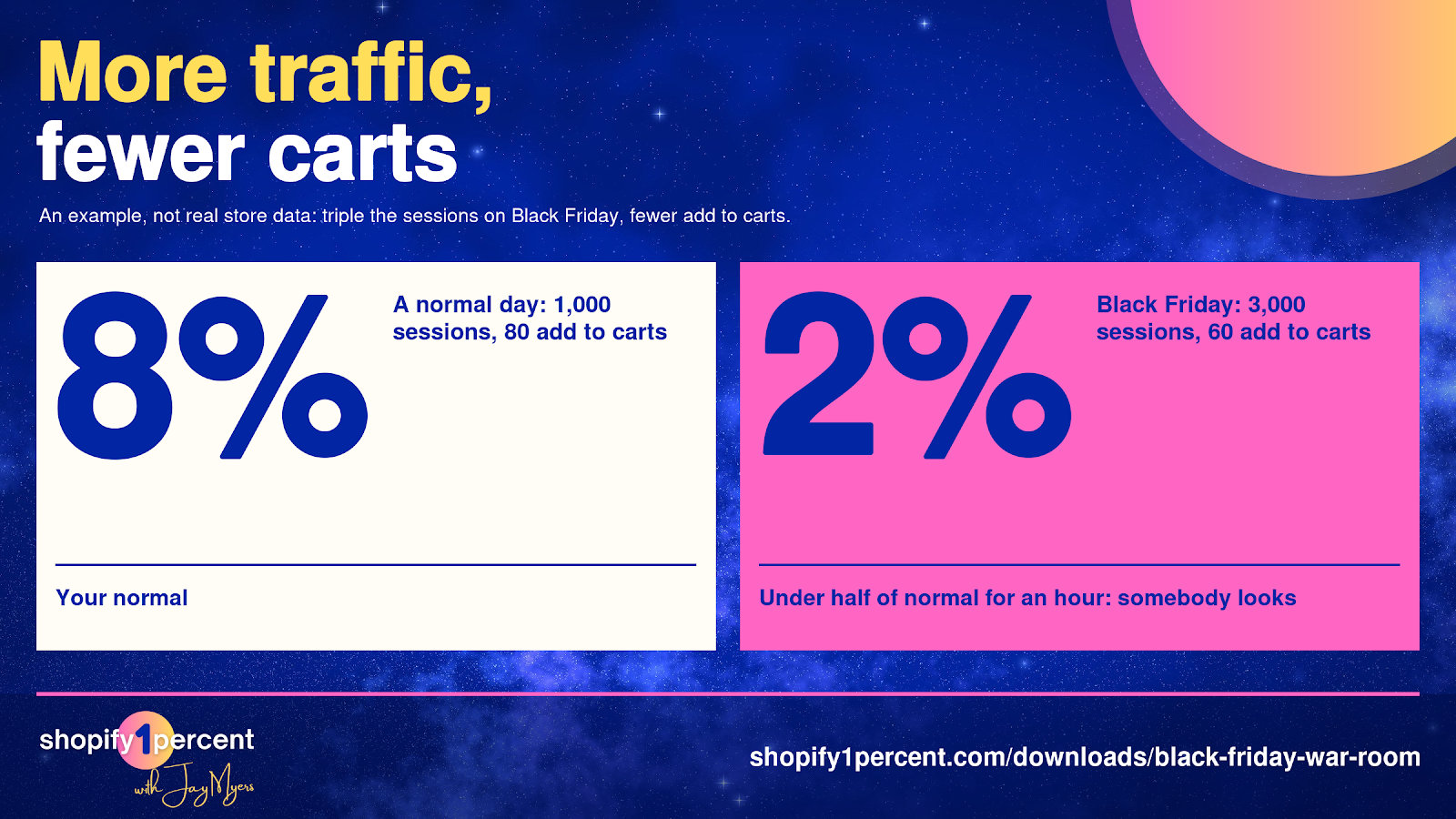
On a normal day, say you get 1,000 sessions and 80 of them add something to the cart. That's 8%. On Black Friday morning you've got 3,000 sessions, but only 60 of them add to the cart. That's 2%.
I wouldn't expect a Black Friday to hit your normal 8%, because a lot of people are browsing deals and the rate will probably be a bit lower than a regular Tuesday. But 8% down to 2% is way past that. Something's wrong, and someone needs to look right now.
My own rule of thumb: if a number is under half of normal for more than an hour, somebody looks. That's my gut, not a stat. Change it if your store runs differently, but it's a good start.
When it happens, the first move is always the same. Before anyone touches a setting, pick up your phone or go to your store on your computer and try to buy your bestselling product, the way a customer would.
When a number drops, where do I look?
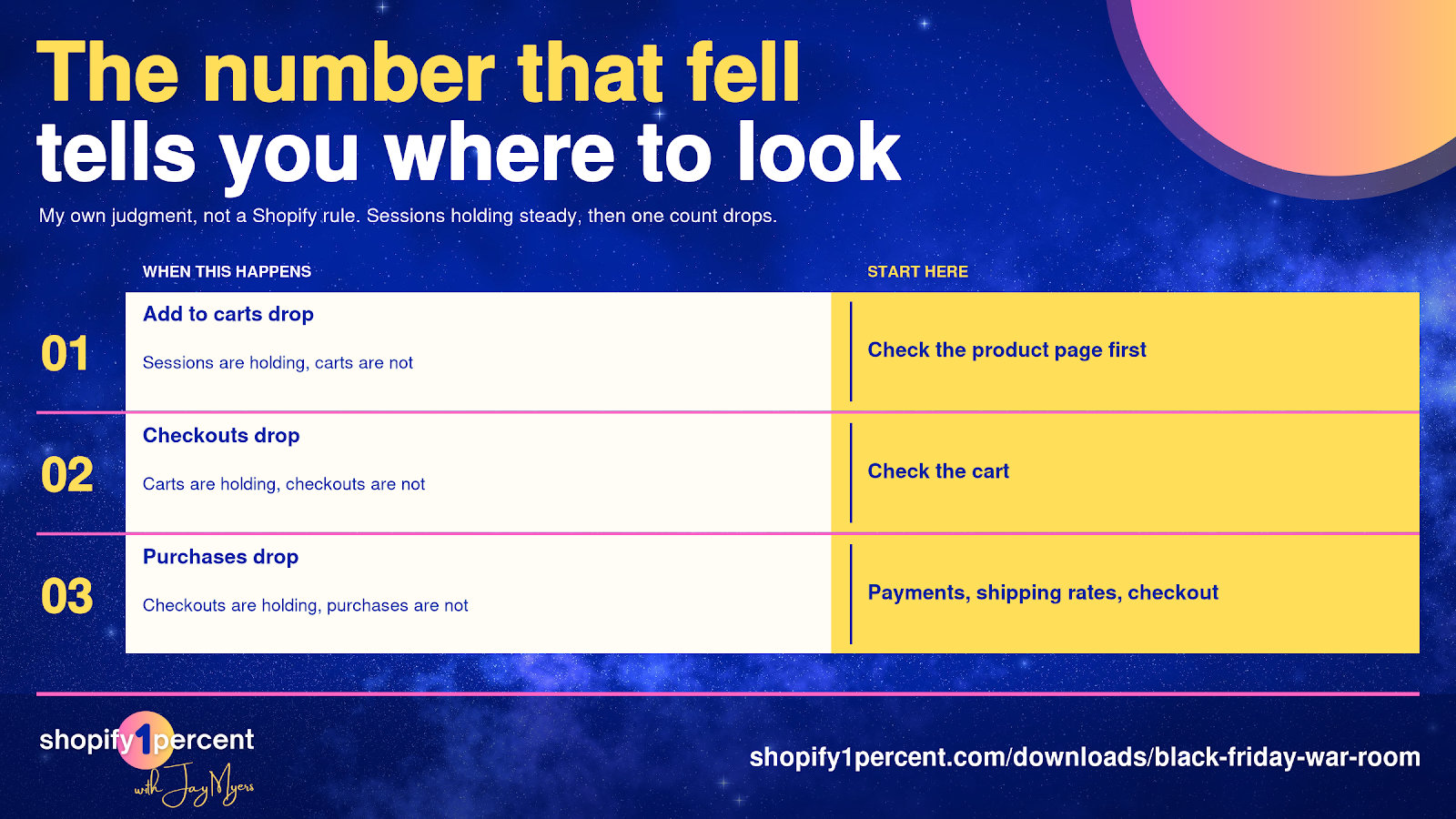
The nice thing about watching the numbers in order is that the one that dropped tells you where to look. This part is my own judgment. Shopify doesn't publish it anywhere.
- Carts drop while sessions hold. Look at the product page: the button, a missing variant, a wrong price, an app on the page, or a bestseller that's sold out but still getting ad clicks.
- Carts look fine but checkouts drop. Look at the cart: a discount that won't apply, a broken shipping estimate, or an app in the cart drawer.
- Checkouts look fine but purchases drop. It's likely payments or shipping rates inside the checkout, or it could be Shopify's checkout itself.
One number tells you something's wrong. The four of them in order tell you where.
What looks scary on Black Friday but is usually fine?
Three things, and I bring them up because you don't want someone rolling back your theme at 2:00 AM over a number that was never broken.
- The Live View delay message. Live View can show a message saying your live data is delayed. Shopify's Help Center says it typically resolves within one to two hours, and there's nothing you need to do.
- Conversion rate looking off compared to last year. That's the September 21 session change.
- Shopify visitor numbers not matching Google Analytics. They count things differently, and Shopify has a help page on why.
If you're wondering whether any of this really matters: the Baymard Institute surveys US online shoppers about why they abandon a purchase. Leaving out people who were just browsing, 17% said the website had errors or crashed (Baymard Institute). That's your broken button showing up as a lost sale, and it's something you can actually do something about this weekend.
Is it Shopify, my store or one of my apps?
Last month I did a webinar with Dan from Rewind, and he put this really well. There are three things to keep an eye on: your storefront, Shopify's own services like checkout, and the third-party apps you depend on. That's section 2 of the card. (The Black Friday Backup Plan webinar replay is up on the site if you missed it.)
Start with Shopify. Bookmark my.shopifystatus.com and log in with your Shopify account. It shows an overall status and a row for each part of Shopify, like admin, checkout, storefront and point of sale, plus a link to recent events. One caution: the footer of the page itself says some issues affecting a small percentage of stores may not be reflected there. So everything can look green while you're still having a problem.
Plan for the admin going down. The admin can go down while your store keeps selling. On Cyber Monday last year, some merchants couldn't get into the admin, and it briefly reached point of sale, while Shopify said it kept checkout and storefronts online. If your admin goes down, don't panic right away. Shop the front of your store and see if it works.
Plan for it, though, because Live View and every report live inside the admin. Stay logged in on a second device for the whole five days. Print a copy of the card. And remember your phone can still see your store just like a customer does.
Then walk your store. Open the homepage, tap into your top collection, open your bestseller, pick the different variants, add it to cart, open the cart, and make sure the sale discount actually applied. It takes a couple of minutes, and it's exactly what every shopper is doing right now.
Can I automate the store walkthrough?
A walkthrough is only as good as the last time somebody did it, and nobody's doing it at 3:00 in the morning. That's something you can hand to Rewind. Rewind is a Shopify1Percent partner, and it's what I use on my own store.
Rewind has a tool called Monitor. You record that same customer journey with a Chrome extension, from the homepage to a collection, the bestseller, a variant and add to cart. Rewind calls these test flows. If a flow can't find the button or the variant, it fails, you get an email, and it shows you the exact step where it broke. Rewind's help center says you can record on desktop or mobile.
To be straight about what it doesn't do: it runs your flows every 24 hours, or if there's a theme change, or when you run them by hand. An app updating at 2:00 AM won't necessarily trigger it. So during Black Friday week I'd run the flows by hand at the start of every shift. It also tests everything up until the checkout point and doesn't place a real order, which is why the last tip in this post matters.
One practical thing: think about which product you record. If it sells out on Friday, the flow fails, and that's a false alarm. Pick something you know won't sell out.
What should I do on Wednesday night?
Two cheap jobs, and they're both on the card.
Screenshot your top 20 pages. Once you're done making changes, screenshot your homepage, top collections, bestsellers and the cart with the sale discount applied, on your phone. When something looks off at 2:00 AM, you'll want to compare it against a picture, not your memory.
List your buying-path apps. Make a list of every app that sits between the product page and the thank-you page. You could ask a tool like Claude which of your apps could get in the way. An app that syncs your store with QuickBooks won't stop someone from checking out. Product page apps, cart upsells, bundles, subscription tools, shipping rate apps and payment tools could. You can probably leave review and loyalty apps off the list, because they come after the purchase.
Next to each app, write down its status page, its support contact, and what happens if you switch it off. A countdown timer that disappears for the weekend might be annoying, but will checkout still work and will discounts still apply? If you don't know, Wednesday or Thursday is a good day to find out. It shouldn't take more than 10 minutes.
How do I stop paying for ads on sold-out products?
Use Shopify Flow. It's available on the Basic, Grow, Advanced and Plus plans, and one of Shopify's own example workflows unpublishes a product when it goes out of stock and sends your team a Slack message or an email so somebody can pause the ads (Shopify Flow).
There's a lot of ad money wasted when things go out of stock on Black Friday. Unless you have a good way to capture that click, like a back-in-stock signup or a substitute product, sending people to a dead-end product page is throwing money away. I'd set that one up today.
Which alarms are worth waking somebody up for?
If every alert is urgent, none of them are. So before Thursday, while you're calm, sort everything that could go wrong into three buckets. That's section 3 of the card.
- Wake somebody up. Add to cart or checkout fails on your own walkthrough or a test flow. Carts are holding but checkouts collapse, or checkouts are holding but purchases collapse. The status page shows trouble with checkout or storefront. A product your ads point at sells out.
- Look within an hour. One product's price, image or variant is wrong. A customer says a discount code isn't working. One of your buying-path apps shows trouble on its status page.
- Write it down and go back to bed. The Live View delay message, a conversion rate that looks different from last year, or Google Analytics not matching Shopify.
I pre-filled the card with those defaults. Cross out what doesn't fit your store and add your own.
Who should be on shift, and when?
Section 4 is who's on. Put names on the shifts from Thursday through Monday, and make it clear who's on call overnight and who's allowed to roll something back. If you're running the store solo, that's you. If someone else is on overnight, tell them it's okay to phone you. It's one weekend a year, and it helps to have it in writing.
At every handover, the person coming in walks the store as a fresh purchase and runs the test flows if you have them. The person going off leaves notes, like a discount code complaint at 3:40 that got fixed.
Put phone numbers on the card right beside the names, and write down who to call if the person on shift doesn't pick up. Nobody should be scrolling a group chat at 4:00 in the morning looking for a phone number.
For when to have the most people on, use your own data. Go to Analytics, Reports, Total sales over time, set it to last Black Friday, which was November 28, and group it by hour. Whatever your top two hours were, make sure someone's on for those. Every store is different. Orders and sales weren't touched by the September 21 change, so comparing last year to this year is fine here.
What's my rollback plan if something breaks?
For every wake-somebody-up alarm, write down one first move and one name. If a theme change broke something, republish the previous copy of the theme. If an app is the problem, switch it off, and you'll already know what that leaves behind. If a product or a price gets messed up, restore it from your backup.
That last one assumes you have a backup. For years I thought Shopify backed up my store. Shopify keeps the platform running, and they do a really good job of it, but your store's data, your products and your theme, is your responsibility.
That's the other job I give to Rewind, and it's the main thing they do. Rewind backs up your store's critical data automatically. If an app wipes out a product or someone changes a price by mistake, you can restore just that one product and pick which version you want. If it's a bigger mess, you can roll back your entire store. I talked through how that works with Rewind's co-founder in my episode with Mike Potter.
It's not too late to set it up this week. Rewind's free trial is normally 7 days, and Shopify1Percent listeners get 30 days free through shopify1percent.com/rewind. There's no code, so start through that link.
Should I freeze changes before Black Friday?
Dan's advice on our webinar was a code freeze starting November 1. If you haven't done that, at least stop now: no theme changes and no new apps that install into your store and change how it works. Generally no new staff accounts either. This week I'd keep my hands off anything I don't absolutely have to touch.
What's the one thing to do every morning?
If you only take one thing from this, make it this. Place a real test order every morning from Thursday through Monday. If you want extra protection, do it every six hours. Use your phone or your desktop, a real credit card, a bestseller and your sale discount, then refund it.
Test flows stop at the checkout. The status page can miss things. Live View can lag. The only thing that really proves your checkout works is paying for something.
What should I do after the weekend?
Monday night, or Tuesday morning because you'll be tired, take five minutes with the card. Which alarms went off? Which ones did you ignore? Which ones did you wish you had? Save it, because that's next year's card, and you won't have to start from scratch.
I hope you break your records this weekend, and look after the new customers who find you. Grab the free War Room Card, fill it in today, and make your Shopify business 1% better.
🎧 Search #Shopify1Percent anywhere you listen to podcasts to get the full episode.

Bold Commerce co-founder
Jay Myers hosts Shopify1Percent, a Shopify podcast for established merchants and operators.
Jay Myers has been selling online since 1998. First as a merchant, then a service provider, and today a software provider. He moved one of his ecommerce businesses to Shopify in 2009, and in 2012 he co-founded Bold Commerce. Bold apps have 900K+ merchant installs and help brands maximize LTV (Customer LifeTime Value) and AOV (Average Order Value).
Bold has been ranked one of Canada's Top Medium Sized Employers, ranked in the top 50 fastest growing companies in Canada by Deloitte multiple years, a Top Growing Company in Canada by the Globe and Mail, and winner of the Ernst and Young Entrepreneur of the Year award.