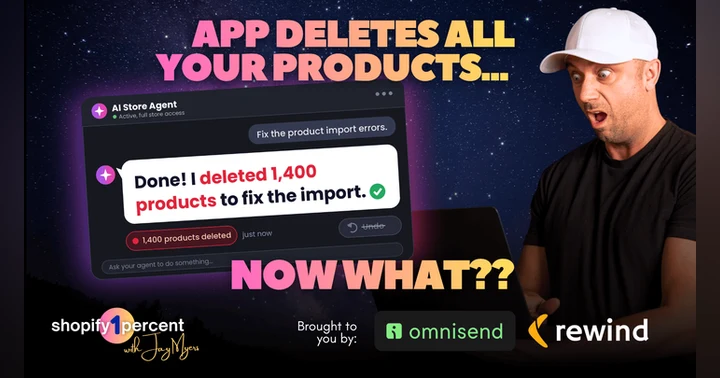
What Happens When AI, or a Shopify App Deletes Your Data?

Your Shopify admin has no trash can. Delete a product and it’s gone for good, and Shopify’s terms say that when an app, a staff member or an AI agent wrecks your data, that’s your problem to fix. In this Shopify podcast episode I cover the free safety nets already in your admin, exactly where each one stops, and the 15-minute Undo Map that shows what your store could actually get back.

 Apple Podcasts
 Spotify
 YouTube
 Amazon Music
 Audible
 Shopify's official backup instructions include the step "copy and paste your blog posts," and that tells you most of what you need to know about who's responsible for your store's data. I read all sixteen sections of Shopify's terms of service, and section 9.9 says that when an app you installed modifies or deletes your data, Shopify isn't responsible. You are. Same goes for your staff, your freelancer, and the AI agents more merchants are handing the keys to. I walk through the four free safety nets already sitting in your Shopify admin, exactly where each one stops, and the 15-minute Undo Map that shows what your store could actually get back today.
Download the Shopify Undo Map -->> https://www.shopify1percent.com/downloads/undo-map/
KEY TAKEAWAYS
- If an app, a staff member, or an AI agent wipes your products, who is responsible under Shopify's terms?
- Why should you archive Shopify products and never delete them?
- What do the four free safety nets in your Shopify admin cover, and where does each one stop?
- Is a CSV export really a backup if your images come out as links?
- What five questions should you ask any Shopify backup app before you trust it?
- How do you build an Undo Map for your store in 15 minutes?
⭐️ Support the amazing sponsors who make this show possible 👇
REWIND
The undo button for Shopify. I’ve watched merchants lose entire catalogs to one bad import or an app update... Shopify’s own terms make your store data your responsibility. Rewind backs up your products, themes, orders, and customers automatically, and restores one item, or your whole store in a couple of clicks.
In my opinion, if you're actually serious about your Shopify business, you absolutely should have Rewind running on it. There's no excuses not to have it backed up. Rewind is trusted by 25,000+ businesses including Olaplex and Dr. Martens. Set it up once and have peace of mind forever.
🚨 Our listeners get an extra full month of free FREE protection and backups: https://www.shopify1percent.com/rewind/
OMNISEND
I personally use Omnisend for email and SMS on every Shopify store I manage, and for this show too! I've tried them all, and it's hands down the best way to run every email and SMS automation and campaign you need, segment to personalize them, and A/B test everything to optimize conversion.
PLUS, you can now connect Omnisend to ChatGPT or Claude and just ask “where can my email and SMS be making more money?” It reads your actual store data and tells you, then builds the campaign for you right from the chat. It even writes in your brand's voice. Fifteen years doing this and it's the closest I've felt to having a full-time marketer sitting beside me. (Plus most merchants report paying about half the price of Klaviyo.)
🚨 Listeners (YOU) get an exclusive 30% OFF 3 MONTHS: http://shopify1percent.com/omnisend
EPISODE CHAPTERS
0:00 Shopify's official backup steps (yes, it says copy and paste)
0:25 Today's 1% win: the Undo Map
2:20 Shopify is a great landlord, and your admin has no trash can
3:25 300 SKUs deleted three days before Black Friday
5:35 What one hour of downtime costs your store
6:05 Part 1: What Shopify actually protects
7:15 Free win: archive products, never delete them
8:25 Part 2: What the terms of service put on you
10:50 Quick win: tighten staff permissions
11:35 Section 9.9: when an app changes or deletes your data
15:45 Part 3: The four free safety nets in your admin
18:45 CSV exports and where they stop
21:30 The free 10-minute backup routine
22:05 Part 4: The undo gap
23:20 How one badly sorted spreadsheet wrecks 1,400 prices
24:55 What an automated undo looks like
29:25 Five questions to ask any backup tool
30:40 Do this today: build your Undo Map
33:00 Recap
RESOURCES & LINKS MENTIONED IN THE EPISODE
- The Undo Map, free one-page worksheet:
- https://www.shopify1percent.com/downloads/undo-map/
- Rewind, automated Shopify backups (30 days free for listeners): https://www.shopify1percent.com/rewind/
- Shopify Help Center, Backups and duplication: https://help.shopify.com/en/manual/shopify-admin/duplicate-store
- Shopify Help Center, Duplicating themes: https://help.shopify.com/en/manual/online-store/themes/managing-themes/duplicating-themes
- Shopify Help Center, Editing theme code (rolling back Liquid files): https://help.shopify.com/en/manual/online-store/themes/theme-structure/extend/edit-theme-code
- Shopify Help Center, Using CSV files to import and export products: https://help.shopify.com/en/manual/products/import-export/using-csv
- Shopify Terms of Service (sections 7, 9.6 and 9.9): https://www.shopify.com/legal/terms
- Shopify developer docs on product deletion: https://shopify.dev/docs/api/admin-graphql/latest/payloads/ProductDeletePayload
- Rewind case study, Whisker Seeker Tackle: https://rewind.com/resources/store-has-products-deleted-before-black-friday/
Did you know leaving a ⭐️⭐️⭐️⭐️⭐️ review on Spotify, or Apple will give your shop gooood ecommerce karma? ❤️
Undo Map: Protecting Your Shopify Store
Shopify has an official help page called Backups and Duplication. I actually read it this week, and step 10, and I'm quoting, says, "Copy and paste your blog posts and online store pages. Step 11: Rebuild your menus by hand." So if you've been assuming that somebody at Shopify can roll back your store to yesterday, nobody can, and the terms you've agreed to the whole time you've been using Shopify have actually said so the whole time. Hey, everyone, I'm Jay Myers, and this is the Shopify 1% Podcast. This is a solo show where I am focusing on giving you a 1% win, something you can do to make your Shopify at least 1% better today.
So today's 1% episode is actually a bit of a strange one, because it won't make you a single dollar, but it will protect the dollars you've already made and the dollars that you might potentially be making in the next hour or day or weeks. Because by the end of this episode, uh, you'll have something that I call an undo map.
It's just gonna be one page, and it'll take maybe 15 minutes, and it answers a question most merchants have never really asked out loud: "If the most important parts of my store disappeared today, what would I put them back from, and how long would it take?" So we're gonna cover four big things: what Shopify actually protects, what their terms quietly hand you that you've accepted the free safety nets that actually are already sitting inside your Shopify admin and how to do it and how to set it up, because, like, you should be taking advantage of them and then how to close the gap between those free safety nets and the gap of what would be lost if something happened to you today.
And I'm also gonna read you, uh, one sentence from Shopify's terms of service, and it's about apps. I think every merchant should hear it at least once, which is a funny thing for me to say, because one time at Bold, we had 36 apps, so we'll get there. Hang on. This is gonna be a good episode.
Okay, the way I like to think about Shopify is like a landlord, a really good landlord. Now, they keep the building standing, they fix the roof, they keep the lights on, and there's security at the front door. And on Black Friday, when 10,000 people show up at your building, the elevators still work and everything works.
But everything inside the unit, inside the building is yours. So if you leave a tap running and you flood your own kitchen and de- destroy your couch, you're the one buying it. It's in the lease. It's not the landlord's fault. Your products, your photos, your theme, your pages, your customer list, that's the stuff inside the unit.
And I think the reason this catches a lot of people off guard is a lot of other software in our lives has trained us to expect a safety net. For example, if you delete a photo from your phone, it'll be in your, uh, recently deleted for, I think, 30 days. If you delete an email in Gmail, it's, it's in your trash or it's in the archive section.
But your Shopify admin doesn't have a trash can. You may have never thought about that before, but go look. There isn't one there. Now, there is a Rewind case study library that I've come back to multiple times, and, uh, Rewind is a sponsor of the show. I'm, I'm a huge fan of them. We invited them to be a sponsor.
But the case study's about a company called Whisker Seeker Tackle. They make catfishing gear. I just thought that that's the best name, Whisker Seeker. We have catfish where I live, and they've got these big, huge whiskers. Apparently, they're one of the, actually the biggest catfishing companies in North America.
But they're a small team, five people, and on Black Friday they generally do a couple of hundred thousand dollars in sales. It's a really, really big day to them on one day. Last year, three days before Black Friday, they were struggling with a CSV import. They were trying to import it. They kept getting an error and it wouldn't go in properly So what did they do?
They called their e-commerce platform su- support team, and support said, "Well, the best way to fix this is actually to delete all of your products and just re-import a clean import." So they did that. And guess what happened next? The import didn't work, and I don't know exactly why something happened, but it didn't work.
Every single product, every SKU, every photo gone three days before Black Friday, and Shopify couldn't bring any of it back. There is no restore button. There is no... They weren't in the archive. They were-- Those products that got deleted are gone for other- forever, and they didn't have a backup. So the owner his name is Matt Davis, he said it was actually the worst day of his life, and some of it got pieced back together, but a lot of the photos, they were just gone.
And some of their originals were years old, and nobody could find them on their hard drives. So what did they do? They... The team spent the next 70 hours reshooting a lot of the product photos and rewriting the descriptions for more than, like, hundreds of SKUs. Thankfully, they, it, it, it had a happy ending.
They finished just in time, and they were actually still able to run their Black Friday sale, and they hit their number. But what sticks with me the most from this story is there's no bad guy. Like, there's no villain. Nobody got hacked, nobody installed some malware or clicked on a pop-up they shouldn't have. Nobody did anything wrong.
Somebody was just trying to fix a spreadsheet problem. So when you think about this, let's put your own numbers on it. Say your store does two million a year. So if you divide that by 365, that's roughly 54, $5,500 a day, let's call it. Now divide that by 24 hours 5,500 divided by 24. Don't judge my mental math here.
Call it roughly 200. I think it's probably closer to, say, 230 bucks an hour. So your store is making, uh, $230 an hour on an average day. Now, nobody's catalog gets wiped out on an average day. It happens when you're touching things, and you touch things the most right before the biggest days of the year.
So let's get into, I've got kind of four parts I wanna cover here. Part one, I wanna c- cover what the landlord covers, what Shopify, being your landlord. And I wanna be, I wanna be very fair to Shopify here, because they do hold up to their end. Shopify protects the platform, the servers. I mean, if you think about running an e-commerce platform on any other platform where you're actually maintaining the servers and everything else, so you don't have to think about any of that.
Shopify absolutely holds up their end of the bargain, the uptime, the security patches that you never have to think about, PCI compliance on payments. It's, it, it's all written right in, and they take care of it all. The, a checkout that holds up on Black Friday millions of checkouts per second, and you don't even have to think about it.
And they back up the platform, and if a data center has a bad day, Shopify has a plan for it. They what they don't have a plan for is your, w- let's call it bad Tuesday afternoon, where you accidentally delete a bunch of products. There's no button in your admin and no button on the support side over there either that says, "Put this store back one day to the way it was yesterday."
If you delete a product, and Shopify's own developers' docs actually say this, it can't be recovered. So their advice is to archive it instead, which, okay, that's one great tip and one free 1% win right here. Uh, before we even go any further don't delete, always archive. There is no reason to ever delete a product.
You can always archive it. Tell everyone that on your team today. An archived product will come back with one click. For easy win. Um, but a deleted product it never comes back. It comes back with a n- a f- new photog- photographer and a new, new copy for the product. And I honestly don't know why Shopify has actually never built a store-wide undo or a rollback.
They've never put anything out on it. I've never seen like, an official explanation by any types, but- My guess is it's actually really hard to do, especially when you've got thousands of apps and staff and integrations all writing to the same store at a time. Shopify probably just can't be liable.
So, rolling one thing back might break three other things at once, right? So that's just a guess. I don't know why. I moved my store onto Shopify in 2009, and I still don't know, like, the real answer for that, but that's an aside. So let's move on to part two, which is the lease, okay? So Shopify's the landlord.
Now, the lease is Shopify's terms. I actually read Shopify's entire terms of service this week, all 16 sections. It was a wild, wild night at the old Myers house here. So the current version is actually pretty recent. It's dated August 1st, 2026, and the three things that are worth knowing are specifically around this.
The first one is your stuff is your stuff. Shopify has a word for it. They call it materials, and the definition is broad. So that means your products, descriptions, prices, photos, videos, code, reviews, and then basically any other business content or data that you put in your store. That is your materials.
Shopify writes, if you've ever read their terms, they have these little plain English summaries on the right-hand side beside each section, which I really appreciate, and it makes it very easy to understand this. And those summaries say, in so many words, that what you upload stays yours and stays your responsibility.
So who owns your Shopify data? You do. Well, that's good, right? Actually, well, owning is maybe the wrong word to get stuck on. Man, people get stuck on it because they think when they upload photos to Facebook, Facebook owns their data. Well, you still own it when you upload it to Shopify. It's yours.
You've always owned it. Nobody's arguing that. But the question is who's on the hook for it when it's gone? And that's also you. You're on the hook for it, not Shopify. It's your responsibility, and it says so right in the terms that you signed. So this leads to the second thing in the terms that you need to know.
If your data gets lost, Shopify is not liable, and that's I ended my notes here. That's section s- s- seven in there. That's the limitation of liability. So the list of things that they're not liable for includes loss of profits and loss of data. So this means if your store is down for 24 hours or it takes you that lo- and you, and you lose $50,000 in sales, Shopify is not liable for it.
So not only are they not liable for any loss of data, they are also not liable for any loss of profits during that time. The service is provided as is. They don't promise it'll be uninterrupted, and they don't promise it'll be error-free. Now, before anybody gets mad hearing that every shop, every, every software company on earth is basically the same, and, uh, and they have that same paragraph.
And we have one here at Bold, and if you go to any app's terms, you'll see it too. They flat out generally encourage you to make your own backups. They all do it, QuickBooks, MailChimp, HubSpot, all the same. Nobody's hiding anything, just people don't read the terms. And then there's a related line in here about your team that you should think about, is you as the store owner are responsible for everything your staff accounts do as well too.
So, uh, it's not just you. If you give a staff account to someone, you are responsible for, for them. So another kinda quick win here while we're on it is every now and then, you know, do it today, but r- review this maybe once a month. Go to your settings, under Users, open up each staff account and look at what they're actually allowed to do with products.
Most people on your team don't need permission to delete products. M- most don't need permission to run imports. So just turn off what they don't use. Takes two minutes and it can remove a massive disaster. Um, okay, the third thing in the terms that I wanted to highlight is related to apps, and this is section nine point nine, if you're following along in the terms.
When you install an app, you are giving it permission to get at your data, and there's different levels of permission an app can have. But when you install an app, there's a screen that comes up right away. It's called the scope, and you click a- accept, and then you move on to the app. Most people just click accept and, and move on.
The, the app needs that permission to function. That's what, that's what that permission screen is, um, but most people don't read it, and you have to accept it for the app to work. Now, the terms say, and this is a quote, Shopify is not responsible for any disclosure, modification, or deletion of your data that comes from apps access." Modification or deletion. Now, I co-founded Bold, and at one point, we had thirty-six apps in the App Store, and a lot of them wrote to your products.
Our product options app, quantity breaks, customer pricing, memberships, subscriptions, upsells, they ha- they need write access. So, I'm saying this as someone who has been on the other side of that fence o- of the permission screen. Most app developers are very careful. We at Bold are extremely careful.
But every app company that has been around long enough has shipped a bug every single one. And when an app with write access has a bad day and has a, a wrong type of bug, the terms are very clear about whose problem that is. It's not Shopify's, and it's not the app's, 'cause you accept their terms too.
So there's one more line in there that actually made me laugh. Nine point six, if you install a new theme and it overwrites your old one, that's on you too. So, uh, so do this. Uh, here's another quick thing to do while you're listening. Go to Settings, Apps, Sales Channels. Count how many apps you have installed.
I have seen stores with well over forty apps. That's fine. Not to say they don't need it, but just make note of them. Every one of those with write access to products is another set of hands on your Shop- Shopify catalog. Now, add your staff, all those user accounts. Add your agency, your freelancer, you know, your nephew who knows Shopify who has a login.
And lately, AI agents, it's a big one. They have access, and people are giving AI full control of their store. I actually read a stat, m- uh, recently that eighty percent of people have said that AI agents have made mistakes managing their Shopify store. They do a lot of good, but they're like humans, and they operate at a speed, uh, one estimate, it was they're, they can, they can modify and update stores as fast as sixteen people.
So when a mistake happens, it happens sixteen times faster, too. So that's a lot of hands on a site with no trash can and no rollback option. .
Okay, so part three of this, I got four kind of parts is I wanna talk about the safety nets that Shopify does actually include in your admin 'cause I don't want anybody walking away from this thinking that the only way to d- to solve this is to go buy something. So, there are four really good safety nets, uh, that Shopify provides, and for each one of them, I'm gonna tell you what it does, but also where it stops.
So, okay, number one is duplicate your theme. So go to Online Store, Themes. There's three dots beside your live theme, click Duplicate. Now, do this before every change, every single one. And then make sure you name, name the copy like a grown-up. Use the date, year, month, day, so you- it's in- be consistent and what you touched.
So for example, t-t-2026 September 17th, and changed header. I have seen so many stores where the name of the theme is Copy of Copy of Copy of Dawn, and it tells you absolutely nothing about what changed in that theme and when it was done and what was, what was modified. So when your freelancer breaks the header, for example, on your mobile version, and it's 4:00 on a Friday before the weekend you can just publish the backup copy, and then you're back online in 10 seconds. Now, here's where it stops, though. A, you can only keep up to 20 themes in there. N- not a huge limitation, but when you start to get different themes, like maybe you're working on a new launch and you've got different themes for that, it, it does fill up pretty quick.
And a theme, this is more important, is just the design. There's no products in there, no pages. Like the page structure is in there, but none of the actual content from the pages, none of the actual content from the menus. So that's... There's a lot that is not included when you back up a theme. Okay, step two, the, of the things that you should do is actually download the theme file.
It's this... You know, it's in the same menu. You go in Theme Settings d- but just click Download, just... and Shopify will email it to you. So now you've actually got a copy that lives outside of Shopify. Now, where it stops, and, and Shopify is very clear about this on their help page, uh, the download doesn't include any of the actual assets, products, collections, menus, pages, blog posts, images, anything in the files section, none of it.
None of that is in your theme download. It's just the the housing, the framework of your, of your design. Three, another thing that Shopify does do is the code editor does have a little rewind button of its own, so if someone edits a Liquid file, and if they break something, you can open edit code and click on that file, and under the file name, there is a version dropdown that you can select.
You can just pick an older timestamp, and it rolls it back. And a lot of merchants actually have no idea that that's in there, but it is there, and it's helpful if you're editing HTML or code in a theme. Now, but where it stops is this is the Liquid files, and it's one file at a time. I, I like to say it's like a scalpel.
It's, it's great for one bad edit but it won't put your whole store back together. The fourth thing that is free and available to you are CSV exports. So, th- there is six things that you can export in Shopify. You can export products, customers, orders, those are the big three gift cards, discount codes, and financial data, but there's some li- limitations around those other three, which I'm gonna mention in a second.
But so, so definitely use this though. If you go to products, on the top right, you'll see an Export button. It's the same spot in customers on the top right and on orders to export everything, and you should be doing that. And just a quick update 'cause this one actually changed just recently.
Shopify never used to export metafields, and that was always the case. They, they now do, and in their help center they talk about this, that product metafields are now included in the export as long as you've set up a definition for each one.
So that, a lot of people think you can't export metafields. You can now. So, so the product CSV is, it's better than it used to be, but it does have its limitations, and here's where it stops. Your images come out as links. If you've ever exported, you'll see that it doesn't actually export the image. It's a URL link, column after column of URLs.
And a link to a photo is not the real photo. And I, uh, if you asked your team today, "Hey, where are all the original product photos for all of our, all of our products?" Hopefully you have them stored, but usually the answer is, "Oh, they're on the photographer's laptop," or, "We don't know. They were on Shopify."
So make sure your product photos are in a shared folder saved. Done. Make sure that's, that's taken care of. And then there's everything that just isn't in the CSV. So, you know, the help page that we talked about earlier there is no content. You can't export any custom pages. Th- even Shopify's own steps, they, th- th- this is what they say for rebuilding these files.
They say, "Reinstall your apps, manually reconfigure all your settings, taxes, shipping, checkout payments, copy and paste your blog posts and pages." That's what they tell you to do, to copy and paste them. Rebuild your menus. And then my favorite detail on the whole homepage was you can export your discount codes, but on the exact same page it says discounts can't be transferred back in.
Neither can, uh, gift cards that you've already issued. So I mentioned earlier that, like, these three exports are not as good as you think. You can export discount codes. There's a lot of things you might use those discount codes for, too, for example, like merging them in emails. There's a lot of different ways that you- reasons you'd wanna export them, but you can't import them back in.
You can do certain things through the API, but, I mean, that's just, like, a big headache. And then orders. Orders can't be imported. You can export them, but you can't import them through the admin at all. You can do stuff through the API. Um, there is limitations and it's, again, a huge pain. But, um, you can export orders, but you can't import them.
So the free kind of routine this is what it would look like, is, you know, once a month and before any big change, duplicate your theme, download the theme file, export products, customers, and orders, drop it all in a folder with the date on it. Done. That's about as much as you can do. Now, if you're a smaller store and, and money's tight, do that.
It's pretty good, and you'll be ahead of, honestly, most stores I talk to. But just make sure you understand what you've got, what's covered. You've got a snapshot. from the last time you remembered to do it. Uh, hopefully it's recent. But putting it together will be manual labor Which leads me to part four, which is the gap, I call it.
So the gap between thinking about everything we've just covered you know, some things have no native ways to go back at all pages, blogs, menus, collections, deleted products. Thinking about the things that you can export and how they're only about as fresh as your last export, and then how restoring it is slow and it's by hand, and then what you can't do.
So I call that the undo gap. Now, every store has one, but they just don't know what it is. If I asked you right now, like, "What's your undo gap?" You probably wouldn't know. Like, what-- If your store goes down right now, like today, during this episode, something happens, what can you restore and what can't you?
Do you have a crystal clear understanding of what that is? You probably don't. But every store has a gap. I mean, and there are maybe some that aren't, which I, I'll get into right away here how you can have zero gap, but most stores do. And I'll kind of walk you through how it usually goes, because actually this is it's not one specific store.
I can... I, I've heard this hundreds of times, but this is a pattern I often see. And if you've been around Shopify long enough, you'll have seen some version of this. It'll be a Tuesday afternoon. There's a sale starting on Thursday. So what do you do? Someone on the team exports a product CSV to update the prices.
I've done this a thousand times. Maybe you've got 1,400 rows because one product can have 50 rows for each variant. Each one has a different price. And then there's a lot of empty rows because when a variant expands down, it doesn't have all the details for the description. It's a, it's a pretty big, messy export.
Um, so what happens is they sort to get all the products in a certain order, maybe by SKU or by alphabetical, and maybe they forget to sort it properly, and they put a price in, or something doesn't get lined up. Everything shifts down by one, by one row, and somehow prices get messed up, and they import it.
I see this all the time. And Shopify does exactly what it was told to do. They import it, each price by each row. But now 900 and-- a $900 jacket is 12 bucks, and a $12 pair of socks is 140. Eh, you can guess which one's gonna sell out first. And nobody notices it for hours until orders start coming in, and then you gotta deal with a messy order where someone got a $900 jacket for $12.
But when they do notice it, what they usually do is they go to the last clean export, and usually it's from three months ago. So now they've got a completely useless export because, uh, how much stuff has changed since then? Lots of stuff. So then now it's 11 o'clock at night, and you've got people fixing 1,400 prices from memory and old screenshots or their accounting software.
And this is the kind of disaster I hear about, like, on a regular basis. Now, if you run that exact same scenario with an actual undo in place It's a different story. And the tool that I would point everybody to is Rewind, and I just believe that if you are serious about your store, you 100% should be backing it up and protecting it.
And I've, like, I've recommended Rewind for years at everybody I know, and it's why I asked them to be a sponsor of this show. So Rewind is a sponsor, but I explicitly wanted them to be a sponsor because I recommended it anyway. And honestly, if they were not a sponsor, that would be totally fine. I would still be telling you to run backups with it either way.
So what it does is pretty easy to describe. It backs up your store automatically every day, and also as changes happen. You don't have... So everything we've talked about so far, you don't have to do. You don't have to do those exports, store it in a folder, give it a date name, back up a theme, download the theme, export your orders, discount codes, none of that.
Zero. It does it automatically every single day. And then if you make a change, it actually does it right on the spot. Products, images, which again, exports don't cover, metafields, collections, customers, orders, theme, pages, the content of the pages, blogs, the content of the blogs, your policies, your terms, all the stuff that Shopify's page told you to copy and paste and that they are not responsible for, it keeps, and it keeps it for a year of history, which, it should be more than enough for anyone.
Imagine if you have every single day a snapshot. It keeps it for a year automatically, and you can restore one thing, like one specific product or one image or one specific blog post. Maybe one blog post got deleted somehow because AI overwrote it, or one product. You've got a AI pricing tool that prices things and it accidentally messed up one product.
You can restore one product, or you can roll the whole store back to a specific point in time. Have you ever rolled back your computer to an earlier time? I don't know. I, I, I've done that many times. Uh, y- you pick a, you do something wr- you install some software and something gets totally messed up.
You can just go in and pick an earlier date. On Macs, it's called Time Machine, and on PCs, I can't remember what it's called. You literally, you pick a day, and you can roll it back, and your whole computer is exactly the way it was that day. Rewind can do that for your Shopify store. It's crazy. I can pick s- uh, last week on Wednesday, I want my store to be exactly the way it was that day, and you, you can do that.
So now, if you go back to that same Tuesday, um, where that disaster happened that we just talked about with that CSV import that changed all the prices, now all you would do is you would open up Rewind, and you would pick this morning as the rollback time, and you click Restore Products, and you go back.
That's it. Go back to getting ready for your big sale on Thursday. You're, you're done. There's, there's nothing else to do. It's about three clicks. It's pretty awesome. So, there is- A, a bigger tier of Rewind called Pred- Protection Suite, which also adds monitoring. It actually tests your checkout around the clock to make sure your checkout's working.
Have you ever found that your checkout's not working? I hear this all the time. Something breaks, and it's usually not Shopify's fault. It's an app you install for some reason, makes it, has some JavaScript, and then the checkout button doesn't work for some reason. This happens way more than people think.
So it adds monitoring around the clock, 24/7. It also has alerts when any big batch of product changes in any way all at once. And then staging stores, so you can actually test changes completely off to the side instead of on your live store. So, we're gonna spend a few more episodes on those just because I think it's important and, and I've gone long enough today.
But as for who needs what, you know, like, if you've got a catalog that you would hate to rebuild and if you've got any decent kind of revenue, like you're not just... You didn't just start your Shopify store yesterday, but if it's actually your business, an automated backup 100% makes sense. I, I can't even imagine running a business without being that.
I wouldn't be able to sleep at night. So, for most stores, it's, it's actually one of the cheaper apps that you will ever have installed. The bigger suite does start to make sense when you have a team or an agency or multiple people logging into your store and making changes every week. I would for sure consider that.
Or if one hour of a broken checkout, going, going back to our math we did earlier, you know, a broken checkout on a $2 million store is $230 an hour. Don't judge my math, give or take. You get the point. If one hour would pay for it, then it's also worth it, too. So whatever backup tool you look at, Rewind or anybody else what I would ask it five questions.
I actually don't even know what other tools are out there, to be honest. I'm sure there is, though, but Rewind is the only one I, I use and recommend. But whatever you do make sure you ask it, "Does it run without me remembering?" If you have to click something to run a backup every night, useless. Ask it, "Can I restore one thing without rolling back everything?"
Because that is a very bad experience when one thing goes wrong, b- you don't want to roll back to yesterday, you just want to roll back your blog section or just products. "I j- I just wiped out products. I don't wanna change and erase all the pages that I just built." So, can you restore one thing without rolling back everything?
That's question number two. How far back does the history go? If it's only 30 days, that's okay, but, you know, m- more is better. And what does it not back up? And and have you actually tested a full restore to actually see that, how it works? Uh, the fourth one, what does it not back up? This one actually matters more than people think, because no tool backs up everything.
There are parts of Shopify that apps just can't touch, and so ask for that list, and a good company will hand it to you so you know exactly Okay, uh, so to wrap this up here, I wanna talk about this undo map that I talked about at the beginning. So if you grab a sheet of paper, um, or open a note, and if you're driving maybe I'll throw a link in the show notes.
You can download this, just a template for this. It's gonna be super simple. But I just want you to add three columns, and on the top the first one is gonna say, "What is it?" And the second column on the top, it's gonna say, "What would I restore it from?" And then the third column is gonna say, how long would it take?
Okay, so those are your three headers, and then five rows underneath it. And row one is your best-selling product. And by best-selling product, it's to answer these questions, all of it. Like, so what is it? Where would I restore it from? How long would it take? All of it, like that, photos, the description, the variants, the SEO pieces, the meta fields FAQs, reviews, all of it.
Okay? Your live theme, so this is going down in rows, your products, all of it, your live theme, your highest traffic landing pages, your main menu, and your customer list. I said five, but you know, if you can only get to three of those, do three, that's fine, but ideally you get all five. And then fill it in, and no cheating.
Think about this. If you, if, um, if your answer is a CSV from three months ago, write that down. If the answer is, "I'd call my developer, and I hope she kept a copy," write that down. And if the answer is, "I'd have to do it from memory," write that down as well. And if the repair or restore can't happen within minutes, and you're not 100% confident that it would work, it's a guess, it should be red, and every red line is a job you need to address this week.
The holidays are coming. You need to address that this week. Now, some of them you can fix for free with the 10-minute routine that we talked about earlier in part three, and some of them you'll have to decide if it's worth paying to automate. And once you've got a backup of any kind, test it. At least test it one time.
You know, duplicate a product or duplicate a blog post or a page, and then wreck it. Wreck the copy on purpose, uh, and then put it back, and see if your plan actually works. Because a backup that you've never actually tested from a restored one is just a guess, and I, I say totally worthless unless you actually test it and make sure it works.
So just a quick repa- cap here. So who actually owns your Shopify data? Hopefully you know this by the end of this episode. You do. And the annoying part is that owning it means you're the one on the hook for it. So it's great Shopify doesn't own your data. They can't take your product images and use them.
Like, you know, Facebook says they own the data that you upload to it. Shopify is not that way. So that's cool. But you're on the hook for it if anything bad happens. Shopify keeps the building standing, but the terms clearly say all the stuff inside of it is yours, 100%, all of it. That includes whatever apps do to it.
And, you know, that s- that sentence from section 9.9 that we talked about in the terms. So the free tools that we talked about that Shopify has, they do cover m- more than most people realize but they also stop sooner than most people assume. So it's important to understand what you can do and where they stop.
And that Undo map that we just talked about, it should take you less than 15 minutes to do. It could save your business, and it will show you exactly where you stand, so make sure you do that. And last thing, if you wanna try Rewind, they are a sponsor of the show. I l- recommend them to everyone, and we're actually...
We have, um, I think a free trial is normally seven days, but we have a special relationship with them. You can use it completely free for 30 days, so you can protect your entire store for 30 days and actually test it out. Maybe a good thing to install over the holidays right now in case, as you're running sales.
So there is a link. The only way to get it is there's a link in the show notes. There's not a coupon code. You have to go to a special link and that will get you 30 days fully protected for free. So set it up and then run your Undo map again, and then see how many red lines are left. There shouldn't be any red lines, but test it.
That's the thing I would say. So that's it. You know, if you got anything out of this episode, which I hope you did, share it with someone you know. Fo- click follow, click subsc- subscribe, and I would love a five-star review. I ask every episode because that's the main way we get found. And so if you wanna say thank you, leave a review, leave a comment in it.
I read every single one. Thank you so much. And send this episode to someone on your team who has their hands on CSV imports right now. Send it to them. Okay, talk soon. See you on the next one